Wireless@SG Connection Guide

If you do not have PDF reader, download it
here
.
Step 1 of 7
Register for Wireless@SG
You will need to register for Wireless@SG service in order to get connected. Instructions on how to register can be found
here
.
Step 2 of 7
Ensure that your wireless device has a compatible wireless adapter.
Ensure that your wireless device has an IEEE 802.11b/g (Wi-Fi) compliant network adapter. Most newer wireless devices have built-in wireless adapters. If your wireless device does not come with a Wi-Fi network adapter, you will need to purchase a separate adapter. If you have an external adapter, ensure that the driver for the adapter is properly installed before proceeding.
Step 3 of 7
Verify that your wireless adapter is turned on.
For laptops with built-in wireless adapters, ensure that the wireless switch that is usually physically located on the front or side of the laptop is turned on. Some laptops have a Wi-Fi Light Emitting Diode (LED) that will turn red/blue/green to indicate that the Wi-Fi is on.
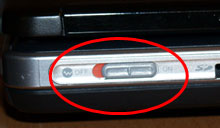
Wi-Fi switch on laptop
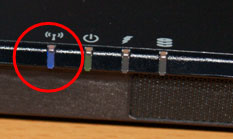
Laptop with a Wi-Fi LED
Step 4 of 7
Verify that your location has Wireless@SG coverage.
A list of all the locations having Wireless@SG coverage can be found here. You will also be able to look out for the Wireless@SG sign/decal that will be displayed at the various locations where there the wireless network is available.
Step 5 of 7
Verify that the wireless connection icon is active.
•
For Windows XP/Vista
•
For MacOS
•
For Handheld Device
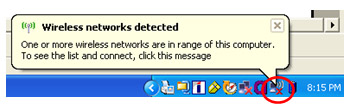
For Windows XP/Vista
The wireless connection icon should appear in the System Tray (bottom-right portion of your screen, where the time is displayed)
For MacOS
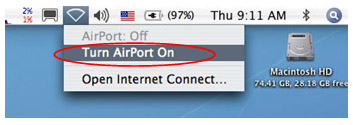
For MacOS, click on the Airport icon located on the top right hand corner of the screen (where the time is displayed) and ensure that AirPort in turned on.
For Handheld Devices
For handheld devices such as smartphones, open your Wireless Manager or Communications Manager (name varies depending on the brand/model/operating system of your handheld device), and turn on Wi-Fi. Please refer to the user manual for your device if you are not sure how to do this. If Wi-Fi is successfully turned on, a small icon will usually appear on the status bar, depending on the operating system used by your handheld device.
Step 6 of 7
Select your login method -
•
Option 1: Web-based login
- Access Wireless@SG hotspots via a log-in page using your web browser
•
Option 2: Seamless and Secure Access (SSA)
- Access Wireless@SG hotspots by installing Wireless@SG Connect. This will allow you to automatically log-in securely to SSA-enabled hotpots (recommended for mobile or frequent users).
Option 1: Web-based login
Ensure that you configure the SSID/Network Name of the wireless adapter to "Wireless@SG". This can be done as follows:
For Windows XP
(a) Search for the network name "Wireless@SG". Select Start > Control Panel. Double click Network Connections. Right click Wireless Network Connection and select View Available Wireless Networks
(b) Select and connect to the "Wireless@SG" network.
(c) Verify that you are connected to Wireless@SG.
Select Start > Control Panel. Double click Network Connections. Right click Wireless Network Connection and select View Available Wireless Networks
(b) Select and connect to the "Wireless@SG" network.
(c) Verify that you are connected to Wireless@SG.

For Windows Vista
(a) Click Start > Connect To. Select and connect to the "Wireless@SG" network. If you have previously set up the network, you should be connected shortly. You can then skip to step (e) to continue the log-in process. If not, please continue with steps (c)-(d).
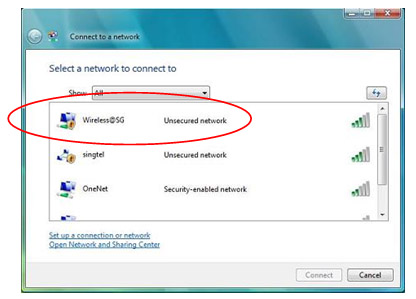
(c) When you see the prompt "Wireless@SG is an unsecured network", please select "Connect Anyway".
For MacOS
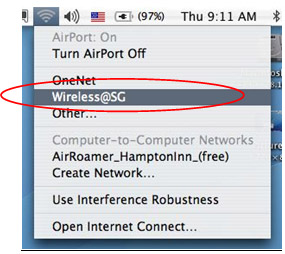
(a) Click on the Airport icon located on the top right corner of the screen (where the time is displayed) and select Wireless@SG.
For Handheld Devices
Open your Wireless Manager or Communications Manager, select "WLAN settings" and click on "Wireless Networks" (actual names vary depending on the brand/model/operating system of your handheld - please refer to the user manual for your device). Select and connect to "Wireless@SG".
(c) Once connected, launch the Internet Browser and you will be greeted with the Wireless@SG login page powered by one of the Wireless@SG operators.
If you have trouble configuring the "Wireless@SG" SSID for your laptop or handheld device, please refer to the user manual of your device and/or contact the device manufacturer. Please note that the wireless configuration required to connect to the Wireless@SG service is:
Type: IEEE 802.11b/g (Wi-Fi)
SSID: Wireless@SG
Security: Open
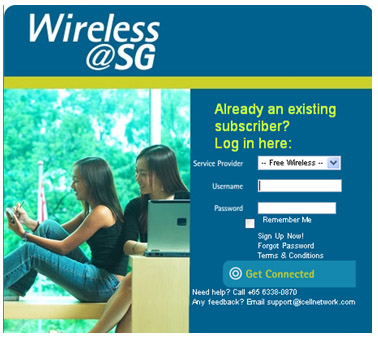
Once connected, launch the Internet Browser of your choice and you will be greeted with the Wireless@SG log-in page powered by one of the Wireless@SG operators as shown below:
Select your service provider from the drop-down menu as shown below:
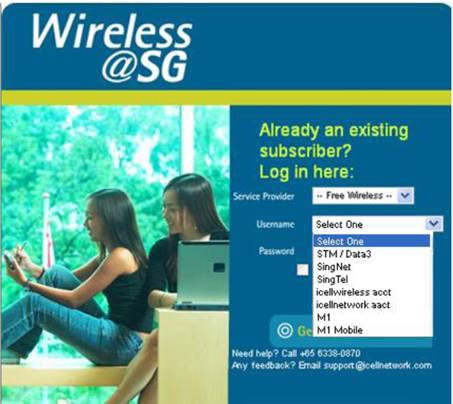
Note that the operators may assign users different username formats e.g., username@stm, username@singnet, username@singtel, etc. Do ensure that you select the correct format from the drop-down menu on the login page. Please contact your Wireless@SG operator here if you are unsure which format to select.
Key in your username and password and click "Get Connected".
Option 2: Seamless and Secure Access
Download the Wireless@SG Connect application
here
to set up your device for SSA. Or, manually configure your devices by following the instructions
here
.
Step 7 of 7
Need further help?
Browse the FAQs
here
.
You may also contact your operator for assistance on getting connected, or to reset your password or retrieve your username.
M1 subscribers:
Contact the M1 customer support helpdesk:
Tel: 6796-0362
Operating hours: 9.00am - 9.00pm (Monday-Sunday)
Email:
[email protected]
SingTel subscribers:
Reset your password
here
:
Contact the customer support helpdesk:
Tel: 1688 Operating hours: 8.00am - 6.00pm (Monday-Saturday)
Email:
http://home.singtel.com/customer_service/cust_serv_emailus.asp
View list of hotspots here